Online – Criminal Fines & Fees, Copy Requests & Mediation Fees Only – BAIL PAYMENTS NOT ACCEPTED
Payments are accepted 24 hours a day when made online at allpaid.com
Copy requests may take up to 5 business days and will be emailed to you.
All criminal fines and fees paid will be processed and applied to the case on the next business day.
Payments made online will have a processing fee. The fee is retained by the processing company, not the Second Judicial District Court.
Paying online for a case that has gone to warrant will not prevent you from being arrested.
Please have the case number and the name of the defendant/party available for accurate processing of the online payment.
By Phone
Phone payments can be made 24 hours a day, seven days a week by calling AllPaid at (888) 604-7888. The representative will ask for the "PLC". The PLC for Second Judicial District Court is a004gz
Please contact the Resource Center first if you do not have your case number at (775) 325-6731 during business hours M-F 8:00 am - 5:00 pm
Payments by phone will have a credit/debit card processing fee assessed. The fee is retained by the processing company, not Second Judicial District Court.
Confirm you are paying the correct court – Second Judicial District Court, Reno, Nevada.
By Mail
Payments made by mail will need to be in the form of law firm check, cashier's check or money order.
Personal checks will not be accepted.
If you wish to have a receipt mailed to you, please include a self-addressed, stamped envelope with payment.
Please include the case number and name of the defendant/party on the payment.
Search Tips
"Website Search" returns all documents and pages on this site relating to your search term. You may use more than one search term.
Examples: "Department One" or "Divorce with Children".
Do not use quotes in your search.
"Quick Case Search" returns cases that match the Case Number, and/or Case Caption, that you provide.
Partial and multiple values are acceptaple.
Example: Case Number = "CV" AND Case Caption = "Smith"
Do not use quotes in your search.

Click or type the following link into your internet browser: www.zoom.us.
Click the "JOIN A MEETING"" button on the top right of the screen.
Type in your “Meeting ID or Personal Link Name” and click "Join."
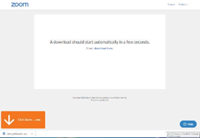
It will then ask you to download the Zoom application to your computer or laptop. Click where the arrow is pointing in the bottom left corner of the screen.
A pop-up window will appear and ask if you want to run the application. When this happens, click "Run."
After downloading (this can take several minutes) another pop-up window will appear in which you will click, "Yes."
Once this finishes you will be able to click, "Join meeting."
Zoom will now be downloaded onto your computer, thus enabling you to use the application without going to the Zoom.us website.
Smartphone
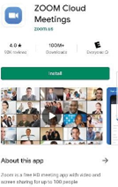
Go to the App store on your cellular device (e.g., Google Play, Apple Store, etc.)
Search for “Zoom Cloud Meetings.”
Install the Application.
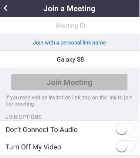
Once installed, open the Zoom App and click "Join a Meeting."
Type in your "Meeting ID" and click "Join Meeting."
You should now be in the meeting. You can start and stop your audio and video on the bottom of the screen using these buttons.